Your project diagrams can now show the gear you actually deploy. We’ve built a library of 54 SVG icons of popular commercial AV equipment, ready to upload to the Find Boxes project diagram editor.
A box labeled “DSP” tells a crew very little. A shape that looks like a Biamp TesiraFORTÉ, a Shure ULXD4 or a Panasonic PTZ camera tells them what to pull, where it goes and what it should look like when it’s racked. Diagrams that look like the job are faster to read on a load-in, and easier for clients to approve.
What’s in the library
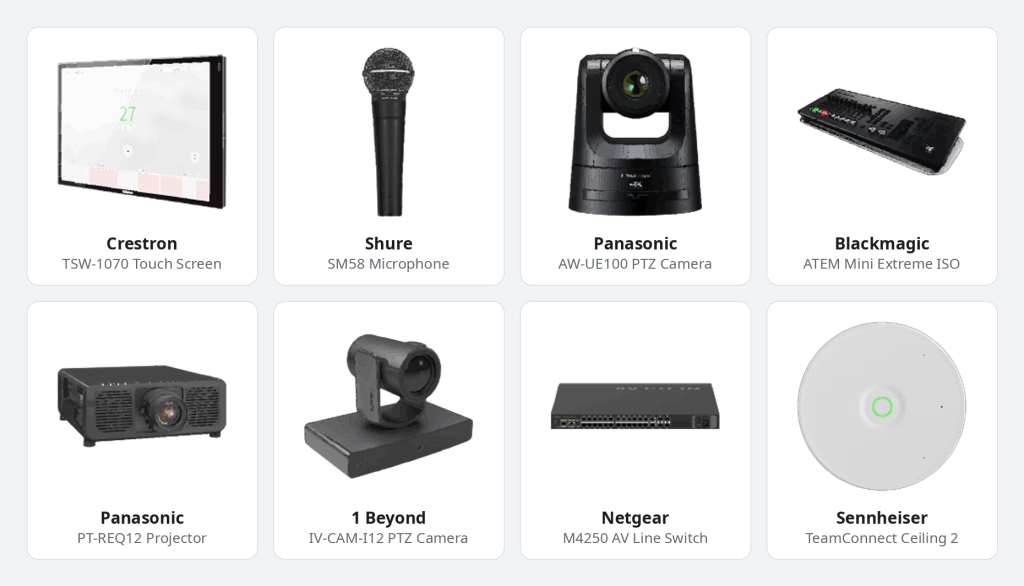
The set covers the brands and models AV integrators and rental houses spec most often, from control and DSP through cameras, projection and the network underneath.
| Category | Brands | Example models |
|---|---|---|
| Control and touch panels | Crestron, Extron, QSC | CP4N, DGE-1000, TSW-1070, TST-1080, TLP Pro 1025T, TSC-70-G3 |
| Audio DSP and processing | Biamp, QSC | Tesira Server, TesiraFORTÉ AI, TesiraFORTÉ X 1600, Q-SYS Core Nano |
| Amplifiers | Crown, Biamp | DCi 8|600DA, CDi 4|600, iTech HD 4|3500, TesiraXEL 1200.2 |
| Microphones and wireless | Shure, Sennheiser, Biamp | SM58, MV7+, ULXD4, EW-DX EM 4 Dante, SL Rack Receiver DW, TeamConnect Ceiling 2, Parlé ABC 2500, MICPAT-2 |
| Video switching and AV-over-IP | Crestron, Extron, QSC, Blackmagic Design | DM-NVX-360, DM-NVX-384, DMPS3-4K-250-C, DMF-CI-8, IN1608 xi, ISS 608, NV-32-H, Videohub 40×40 12G |
| Live production and recording | Blackmagic Design | ATEM Mini Extreme ISO G2, ATEM Television Studio HD8 ISO, HyperDeck Studio HD Plus |
| PTZ cameras | Panasonic, 1 Beyond (Crestron) | AW-UE160, AW-UE150, AW-UE100, AW-UE80, AW-UE50, AW-UE30, IV-CAM-I12, IV-CAM-I20, IV-CAM-P12, IV-CAM-P20, AutoTracker 3 |
| Projectors | Panasonic | PT-REQ12, PT-RZ990, PT-MZ882 |
| Conferencing and presentation | Crestron | UC-SB1 soundbar, AM-3200 AirMedia |
| Loudspeakers | Biamp Community | CCA-80, IS6-112WR |
| Network switches | Netgear AV Line | M4250-26G4F-PoE+, M4250-10G2XF-PoE+, M4350-24X4V |
Why SVG
SVG is a vector format, so each icon stays crisp in your shape library and on the diagram canvas.
- Traced from real product photos. Each icon keeps the shape, angle and color of the actual unit, so a Crown amp looks like a Crown amp.
- One consistent canvas. Every file is 200 × 200 with the product centered and about 10px of padding, so each icon keeps its shape when Find Boxes places it at its standard 80 × 80 size.
- True proportions. A 1U rack unit stays long and thin, and a PTZ camera stays tall. Nothing is stretched to fill the square.
- Transparent backgrounds. Icons sit on any diagram color or grid without a white box behind them.
- Lightweight files. Most icons are under 50 KB, so your shape library stays quick to load.
Using the icons in your Find Boxes projects
Custom icons go into the Object Diagram, the free-form canvas in each project’s Diagrams tab. Upload an icon once and it’s available in every project on your account. Rack Elevation and Signal Flow diagrams use their own equipment libraries.
- Open a project, click the Diagrams tab, then Create Diagram. Set Diagram Type to Object Diagram and click Submit.
- In the editor, under Custom Shapes, click + Upload SVG. Enter a Shape name, choose the .svg file and click Upload. Repeat for each icon you need.
- Click an icon’s thumbnail to add it to the canvas, then drag it into place. Drag its handles to resize it.
- Click Connect Shapes (Line) to show signal flow, such as mics into the DSP and the DSP into the amps. Lines follow the shapes when you move them.
- Add Text labels such as “Lectern mic” or “Rack A, U12”, then click Save.
- Click Export PNG to download the diagram. A copy is also saved to the project’s Files tab, so your team can find it with the rest of the job.
Tip: icons upload one at a time, so start with the gear you use most. Use the file name as the Shape name, such as Panasonic_AW-UE100_4K-NDI-PTZ-Camera, so the right unit is easy to spot. Keep names under 100 characters.
Frequently asked questions
Are the icons free?
Yes. Download all 54 SVG files from the link above and use them in your project diagrams.
Which brands are included?
Crestron, 1 Beyond, Biamp, Crown, Extron, QSC, Shure, Sennheiser, Blackmagic Design, Panasonic and Netgear, across 54 popular models.
Can I use them in other diagram tools?
They’re standard SVG files, so they open in most tools that accept SVG, including draw.io, Lucidchart and Visio.
How do I add them to Find Boxes?
Open an Object Diagram, click + Upload SVG under Custom Shapes, and follow the steps above. Each icon you upload is available in every project on your account.
Why do some icons look long and thin?
Rack-mounted gear keeps its real proportions. A 1U processor or network switch is about 11 times wider than it is tall, so its icon is too.
Get started
The icons are ready to use in your next project diagram. Pick a job, add the gear, and send your crew a diagram that looks like the room they’re walking into.
Don’t have a Find Boxes account yet? Sign up and start building project diagrams with real AV gear. Click here to sign up to get 30 days for free.
Brand and product names are trademarks of their respective owners. Find Boxes is not affiliated with or endorsed by these manufacturers.