You can now share critical data from your Find Boxes projects without inviting clients directly into your primary workspace. Keep your customers informed with real-time job dates, project files, equipment logistics, and announcements through a secure, self-serve portal designed to save you hours of back-and-forth communication.
The Cost of Miscommunication
Did you know that 52% of all construction and project rework is caused purely by poor data and miscommunication? According to research from Autodesk and FMI, a lack of clear information is one of the single biggest profit killers on a job site.
To protect your bottom line, you have to keep clients updated, but you shouldn’t have to spend your entire day answering “Where is my gear?” or “When do you start?” emails.
That is exactly why we built the Find Boxes Client Portal.
Give Clients Answers Before They Ask
The Client Portal acts as a dedicated window into your project, giving your customers 24/7 access to the common answers they need.
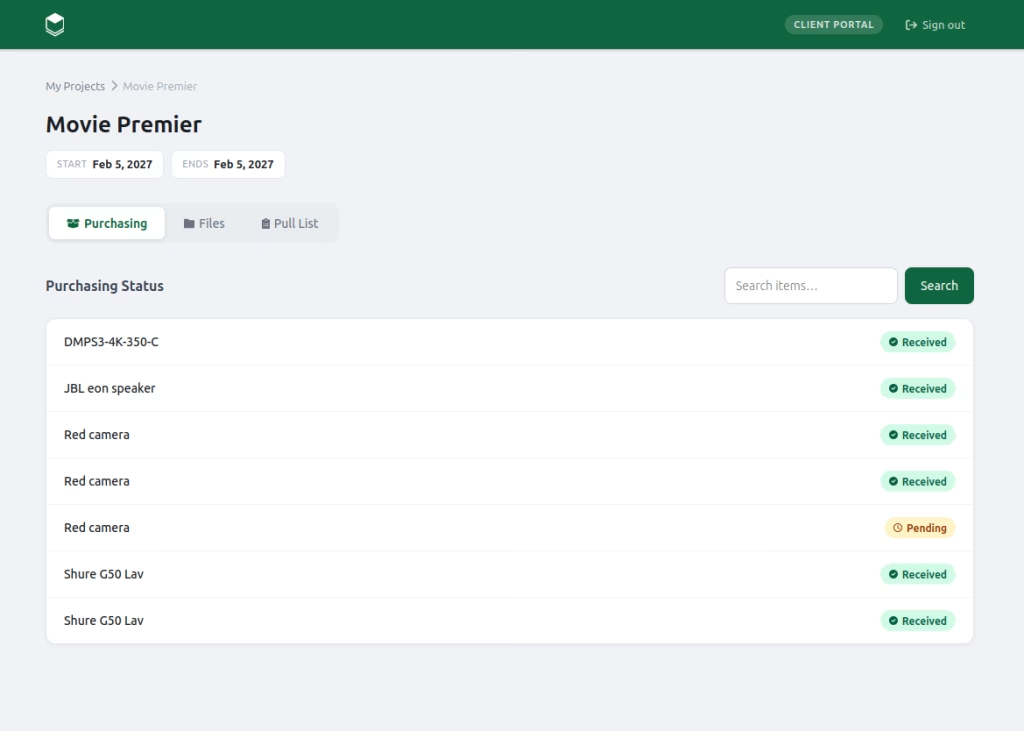
Here is what you can share with a click of a button:
- Project Timelines: Automatically display start and end dates derived straight from your project file.
- Live Announcements: Easily convert project notes into official client-facing updates.
- File Sharing: Seamlessly share drawings, manuals, or hand off documentation directly from your project files section.
- Communication History: Give clients a clear archive of every email sent to them through Find Boxes.
- Procurement Tracking: Show the real-time delivery status of project purchases.
- Inventory Transparency: Share project Pull Lists so everyone knows exactly what gear is assigned to the space.
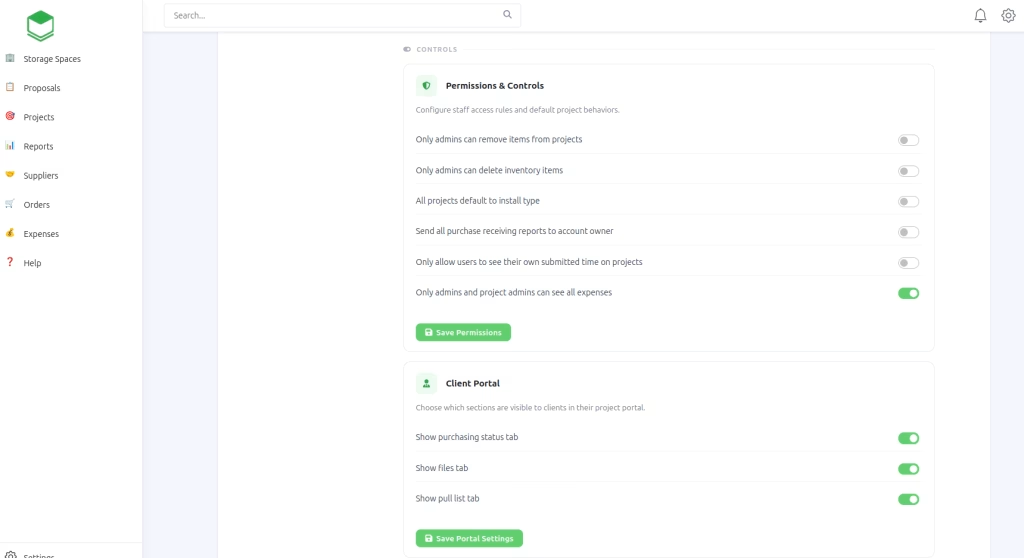
🔒 You Control the View: You don’t have to show everything. On your Settings page, you can fully adjust client portal permissions to toggle individual tabs on or off. You decide exactly what your customer sees.
How to Get Started Today
The Client Portal is live right now. Setting it up takes less than a minute:
- Open any active project in Find Boxes.
- Click on the Clients tab.
- Enter your customer’s email and hit invite.
Your client will receive an automated email detailing how to access their secure project view and set up an account if they don’t have one. It’s that easy.
New to Find Boxes? Managing AV inventory, logistics, and project workflows shouldn’t be a headache. Sign up here to get your first 30 days entirely free!